
How to play
Adventurers of Drenerics is a world made of blocks. You dig into it, build with what you dig, collect gems, grow stronger and meet monsters. You can play alone or in the same world as your friends.
Play nowJump to a part
Start here
Things you do
- The quick bar and the bag
- Digging
- Building
- Gems
- When the bag is full
- Powers and levels
- Monsters and fighting
- Gear and durability
- Magic
- Water and swimming
- The world
- Teleport to the start
- Saving your game
With others
Settings and grown-ups
1. Starting a game
The first time you play, the game asks four short questions:
- Who is playing? Boy or Girl.
- Pick your people. Human, Elf or Dwarf.
- Your name. The game picks a name for you, so nobody types one. Tap Shuffle name to get another.
- Your world. Start a new world, or Join a friend's world with their 4-letter world code.
Then tap Start playing. Every new world is different: its hills, caves and gems are in new places each time.
What you need to play
- Android app: Android 7.0 or newer.
- In a browser: a recent Chrome, Edge, Firefox or Safari, on a tablet, phone or computer.
- On older or slower devices the game may run slowly.
Each time the game opens, a castle shows while the game gets ready and checks for a new version.
When you come back, the start menu has two big buttons: Load my game carries on with the game you played last, and Start a new game begins a new one. All my saved games, below them, lists every saved game: tap Play on one to carry on with it.
Tick Load my game by itself next time to skip the menu: the game then opens the game you played last straight away. To see the menu again, switch Load my game by itself off in Settings.
Back to top2. Vital, your guide
Vital the elephant comes to say hello when you start. He has a ! over his head. Tap him and he shows you one thing about the game. Tap OK and he comes back later with the next one. If you know it all, tap No more tips. He will pop in again another day to ask if you want them back.
- Vital is a small grey elephant with his name over his head. He only gives tips: he asks no questions and gives no gems.
- He never opens anything by himself. The game stands still while his tip is open, and there is no timer.
- After OK he comes back with the next tip after about two minutes of moving around, up to four times each time you play. There are twelve tips.
- After No more tips he stays away for the rest of that time and the next two times you play. Then he asks Do you want tips? Tap Yes to get them back, or Not now.
- When Vital comes at the start, the first quiz friend waits until he has left.
- To turn his tips off or on, use the Tips from Vital switch in Settings.
3. Mirelo, the wandering mage
Mirelo is a wandering mage who walks the roads and fields of every world. He teaches you magic when you are ready, and every now and then he stops by with a magic tip. When he has a tip he shows a ! over his head: tap him to hear it. While he visits, he walks along with you for a little while. Tap Come back later if you want him to leave you be for a day, or turn his tips off with Tips from Mirelo in Settings. In a shared world everyone sees the same Mirelo.
Back to top4. Controls
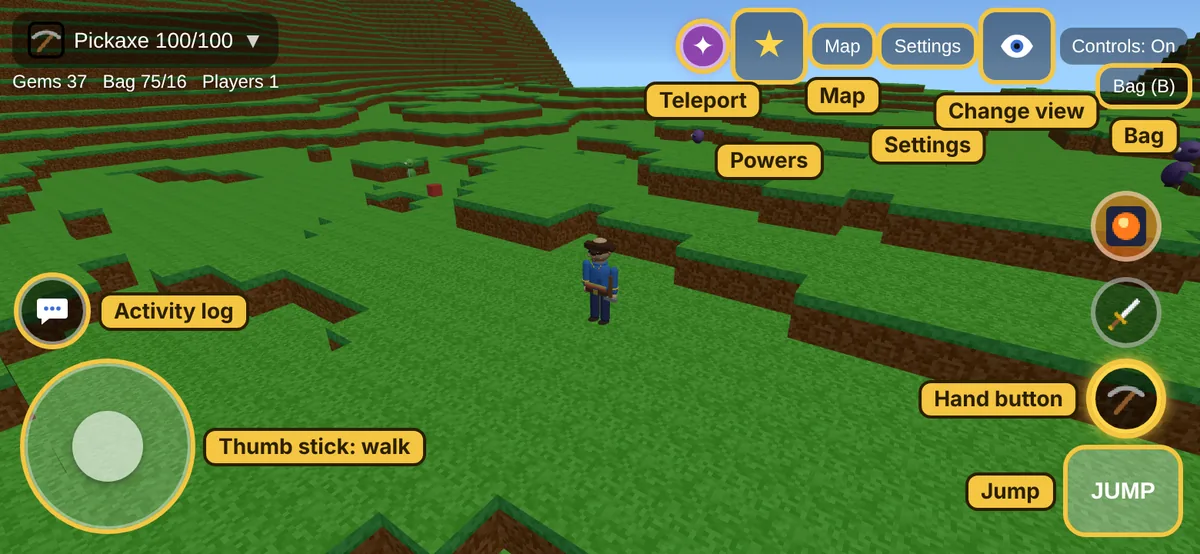
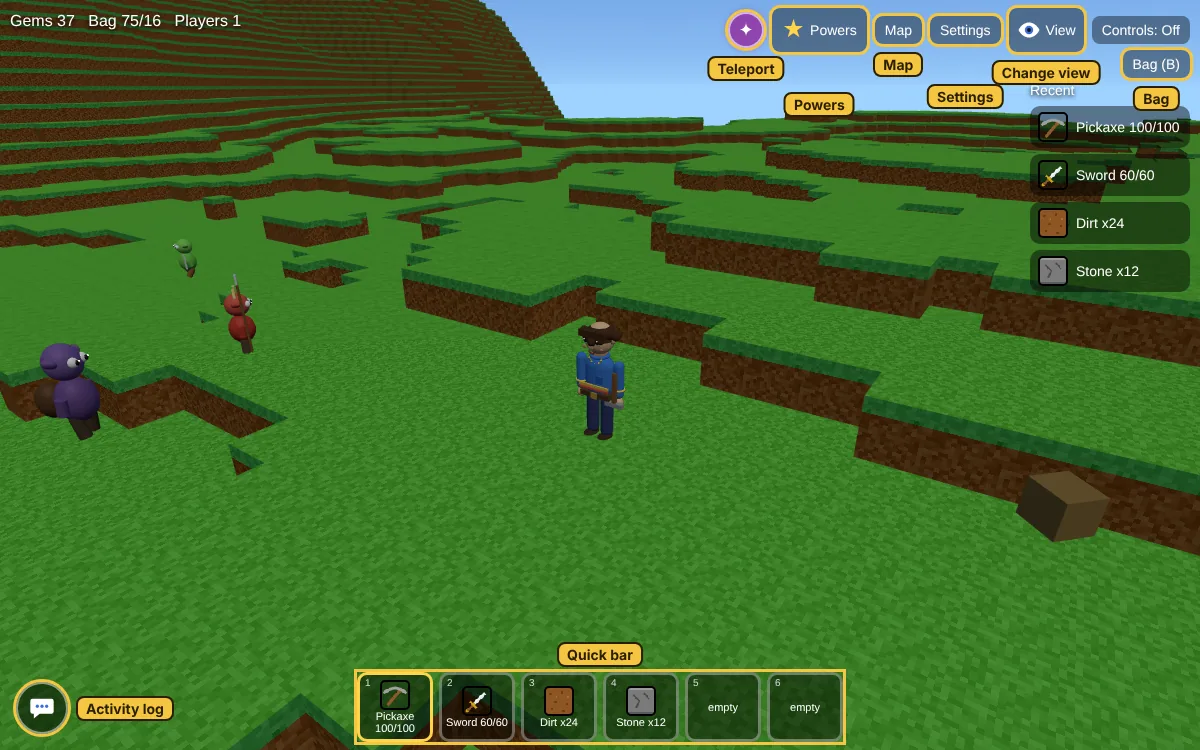
| To do this | On a computer | On a tablet or phone |
|---|---|---|
| Walk | W A S D or the arrow keys | Push the thumb stick. A small push walks slowly, a full push goes at full speed |
| Jump | Space | The JUMP button |
| Turn the view | Drag sideways with the mouse | Drag sideways with a finger |
| Look up and down | Drag up or down | Drag a finger up or down |
| Change view | V, or the View button (the eye at the top right) | The View button (the eye at the top right) |
| Zoom in and out | Mouse wheel | Pinch with two fingers |
| Choose what is in your hand | 1 to 6, or click a quick bar slot | Tap a quick bar slot or a hand button |
| Dig | Hold the mouse button on a block. The pickaxe is the fastest way. You can also dig by hand, with any tool or an empty hand; it is slower, and hard blocks like stone take the longest | Hold a finger on a block. The pickaxe is the fastest way. You can also dig by hand, with any tool or an empty hand; it is slower, and hard blocks like stone take the longest |
| Build | With a block in hand, click the side or top of a block. Right-click also builds | With a block in hand, tap the side or top of a block |
| Fight | With a sword in hand, walk up to a monster (2 blocks or closer) and click it, or hold the mouse button on it | Walk up to a monster (2 blocks or closer) and tap it (with a sword on a hand button), or hold on it with the sword in hand |
| Cast the fireball | Point with the mouse and press F. With the on-screen controls on: tap the Spell button, then click a monster or a place | Tap the Spell button. It lights up. Now tap a monster or a place, and the fireball flies there. Tap the Spell button again if you change your mind |
| See your powers | The Powers button (the star at the top right) | The Powers button (the star at the top right) |
| See the map | M, or the Map button at the top right. Press M again or click the map to close it | The Map button at the top right. Tap the map to close it |
| Open the activity log (game tips, and who joined and left) | Click the speech bubble at the bottom left. Esc closes it | Tap the speech bubble at the bottom left (above the thumb stick). Tap it again to close it |
| Open the bag | B, or the Bag button | The Bag button |
| Close a panel, or quit | Esc | Tap outside the panel. On Android, the Back button |
There are two views. One is from behind your character. The other is through your character's eyes, which is best in caves and rooms. Through the eyes you see the item in your hand at the bottom right. The game remembers the view you used last. Indoors, the view from behind moves in close so you can always see your character.
The Controls button switches the on-screen stick and buttons on or off. On a touch screen they start switched on.
You can only dig, build or fight close to you: 7 blocks for digging and building, 2 blocks for a sword. If the game says "Too far away! Get closer", walk nearer.
Back to top5. The quick bar and the bag
The quick bar is the row of 6 slots at the bottom. The slot you choose is the item in your hand: the pickaxe digs, a sword fights, a block builds.
The bag holds everything you own. Open it, then tap an item to put it in the slot you have chosen. The Recent list shows the things you picked up last; tap one to put it in the quick bar. It is always at the top of the bag. On a big screen it is also at the side, as long as it does not cover a button.
To fill a slot quickly: press and hold the slot for a moment (with a finger or the mouse). The bag opens with that slot chosen; tap an item and it goes into the slot. A short tap only chooses the slot.
On tablets and phones
- Two round hand buttons above JUMP show quick bar slots 1 and 2. Tap one to hold that item. The one in your hand has a bright ring. Tapping an empty hand button opens the bag so you can fill it. Press and hold a hand button to open the bag and change what is on it.
- On a phone the quick bar is hidden to leave room. The button at the top left shows the item in your hand; tap it to show the quick bar, and choosing a tool hides it again.
6. Digging
Hold on a block to dig it. The pickaxe is the fastest way. You can also dig by hand, with any tool or an empty hand; it is slower, and hard blocks like stone take the longest.
- A crack grows while you hold; when it is complete the block comes out and goes into your bag.
- By hand, sand, snow, dirt and grass take 2 times as long as with the pickaxe, stone 4 times and gems 6 times. Digging by hand wears out nothing.
- With a block in your hand, a tap builds; it does not dig.
Digging is how you get blocks to build with, and how you find gems. Each block you dig also makes your Digging power grow.
Back to top7. Building
- Put a block in a quick bar slot and choose it.
- Tap or click the side or the top of a block that is already there. Your block goes next to it.
- A drag only turns the view; it does not build.
- On a computer, a right-click builds with a block from the quick bar even when another item is in your hand.
- You cannot build on yourself, or on a spot where something is lying on the ground. Walk over the item to pick it up first.
- When you run out, the game says "No ... left! Dig some first."
8. Gems
Gems sparkle inside some blocks. Dig the block to collect the gem. Monsters also give gems when you defeat them: stronger monsters give more. You can also earn gems by answering a question from a quiz friend.
Back to top9. When the bag is full
The bag holds a set number of things, and it grows as your Inventory power goes up (12 things at level 1, and 4 more with each level). The Inventory power grows while you carry a full bag.
- If the bag is full, you can still dig. The block falls on the ground as a small spinning cube.
- To make room, open the bag and tap Drop next to a block or a monster part. One of them goes on the ground near you.
- Walk next to something on the ground to pick it up again, once there is room.
- Things on the ground disappear after 5 minutes. Up to 40 things can lie on the ground at once.
- Gems, tools, weapons and spells cannot be dropped.
10. Powers and levels
Tap the Powers button at the top right to see your powers, their levels and how close each one is to the next level.
You have five powers. Each one grows when you use it, and the game tells you when one goes up a level. The Powers panel also shows your quiz badges, your name, the world code and the game version. Close it with its Close button, a tap outside it, Esc or the Android Back button. During play the top left of the screen shows your gems and how full your bag is.
| Power | How it grows | What it does |
|---|---|---|
| Digging | Digging blocks | You dig faster with each level |
| Building | Placing blocks | Shows how much you have built. It changes nothing else yet |
| Inventory | Carrying a full bag | A bigger bag: 4 more places with each level |
| Fighting | Defeating monsters | Harder and faster sword hits. At level 2 it unlocks magic |
| Magic | Casting spells | From level 2, a bigger fireball with a wider burst |
11. Monsters and fighting
Monsters walk around the land. They never hurt you. Defeat them to earn gems, monster parts and sometimes gear.
Your sword reaches 2 blocks. Walk up to a monster before you tap it. The fireball reaches much further.
- With the sword in your hand: get close and tap or click the monster to hit it once. Hold on it to keep hitting. Each hit takes away some of its health.
- On a touch screen, with something else in your hand: tap a close monster. A sword on one of your hand buttons swings once, and your item stays in your hand. If there is no sword there, the game says "Put a sword on a hand button".
- Once you have hit a monster, a small life bar shows over its head. It shows how much health the monster has left: green when it is healthy, yellow when it is getting weaker, red when it is nearly defeated.
- After a hit, the game also shows in words how much health the monster has left and what it is weak to.
- A sword hits for your Fighting level, plus the sword's own extra damage. A monster's toughness takes some of that damage off, so tough monsters need a stronger sword or a higher Fighting level.
- A defeated monster lies on the ground for 5 minutes, then sinks away.
| Monster | Power | Health | Toughness | Weak to | Gems | Parts it drops |
|---|---|---|---|---|---|---|
| Goblin | 1 | 3 | 0 | Fire | 1 | Goblin Ear, Goblin Skin |
| Imp | 2 | 4 | 0 | Holy light | 1 | Imp Horn, Imp Tail |
| Spear Imp | 3 | 6 | 1 | Holy light | 2 | Spear Imp Horn, Spear Shaft |
| Hood Goblin | 3 | 6 | 1 | Fire | 2 | Hood Cloth, Bone Charm |
| Spike Beast | 3 | 8 | 3 | Nothing | 2 | Spike Quill, Beast Hide |
| Brute | 4 | 9 | 2 | Fire | 3 | Brute Tooth, Brute Hide |
Every monster has its own way of moving. Goblins scurry, Imps bounce, Spike Beasts trot, and Brutes stomp around and puff out their chests when you come near. Like every monster, they never hurt you. Watch them flinch when you hit them!
There is no holy light spell in the game yet. Monster parts stack in the bag; they have no use yet.
Back to top12. Gear and durability
Tools and weapons wear out. A pickaxe loses one point for each block it digs, and a weapon loses one for each hit. At zero it breaks and leaves your bag.
| Gear | Kind | Durability | What it adds |
|---|---|---|---|
| Pickaxe | Tool | 100 | Digs blocks |
| Sword | Weapon | 60 | No extra damage |
| Wooden Sword | Weapon | 40 | 1 extra damage |
| Iron Sword | Weapon | 90 | 3 extra damage |
| Gold Sword | Weapon | 120 | 5 extra damage |
| Leather Armor | Armour | 50 | Nothing yet |
| Iron Helmet | Armour | 80 | Nothing yet |
Monsters sometimes drop gear. Stronger monsters drop better gear. Armour can be collected, but it does nothing yet.
Back to top13. Magic
When your Fighting power reaches level 2, Mirelo the wandering mage comes to teach you your first spell, the Fireball. Tap him, tap Show me, watch him cast, then tap the Spell button and the glowing target. If you are busy, tap Not now and he will come back.
If you tap Not now twice, or play for a few minutes without the lesson, the game says "Magic unlocked!" and gives you the Fireball anyway.
- Tap the Spell button. It lights up. Now tap a monster or a place, and the fireball flies there. Tap the Spell button again if you change your mind. On a computer you can also point with the mouse and press F.
- The Spell button stays lit after a fireball, so you can keep casting: each tap or click sends another one. Tap the Spell button to switch it off. It also goes dark by itself 5 seconds after your last fireball. While it is lit, dragging still turns the view.
- With the on-screen controls off, the fireball sits in a quick bar slot: choose it, then tap or click where it should go.
- The fireball flies to the block or monster you aim at and bursts. Every monster inside the burst is hurt.
- Monsters that are weak to fire take double damage.
- A fireball that reaches water fizzles out in a puff of steam and does no damage.
14. Water and swimming
- Water fills the low places: lakes and the sea, with sand on the shore.
- In water you move slower and sink slowly. Hold jump to swim up.
- To climb out, swim to the shore and hold jump while pushing toward the land.
- You can dig and build under water.
15. The world
- The land has different regions: desert, savanna, rainforest, grassland, forest, taiga and tundra. Deserts are sand and the tundra is snow.
- Each region has its own trees and plants, and some have special scenery: cactuses, ice crystals, snowmen and pumpkins. Scenery is decoration; you can walk and dig through it.
- There are mountains, valleys, canyons and caves to explore.
- You can play in an area of 4000 by 4000 blocks around the place where you start.
Caves
Look for dark openings in the hills. They are cave mouths. Walk in and follow the tunnels to big rooms with stone spikes, pools and gems in the walls. It is dim under ground but never black. Lost? Tap Teleport to go back to the start. Tip: the view through your character's eyes is best in a cave.
Castles
Castles come in three styles: strong fortresses with a moat, tall fairy-tale castles on rocks, and palaces with gardens and pools. Most castles mix the styles, so no two are the same. Go in through the gatehouse, sit at the long tables in the great hall, and explore the bedrooms, the library, the kitchen and the store room on the way up to the tower tops and the treasure room at the very top. New blocks: pale stone, sandstone, dark stone, slate roof, window and iron bars. Dig them to take them home, or buy them from merchants. Your older worlds get the new castles too. Castles you have already dug or built in keep their old look, so nothing you made is lost.
Some castles are small towers, some are huge. Climb the towers, walk along the top of the wall, and look for the treasure room high in the main building: its gems are yours to dig. Castle blocks can be dug and used for your own buildings.
- A tower house always stands a short walk from where you start a new world. Big castles can be seen from far away.
- Inside, stairs go round and round up the towers. Rooms are dim, but windows let the light in.
- Castle blocks: castle stone, pale stone, sandstone, dark stone, wood floor, windows, iron bars, and roof tiles in red, blue or slate. Stone blocks and iron bars are as hard as stone to dig by hand.
- Castle courtyards are busy: market stalls with their keepers, a well, barrels, crates, hay and hand carts, banners and lanterns, and villagers walking about. They are for looking at: you can walk through them. Since version 0.6.77, in every world that has castles.
Roads
Roads join every castle to the others. Busy main roads are cobbled; quiet lanes are packed earth. Follow any road and you will reach another castle; signposts with a castle picture show the way at crossroads. Roads cross rivers and canyons on bridges like real ones: small wooden footbridges over streams, stone arch bridges with low stone walls along the sides, and long timber bridges with stone towers over wide water. Main roads have the widest bridges. Road blocks can be dug and built with: Cobblestone and Packed Earth.
Dragons
Wild dragons fly over the land. They are friendly and only eat trees! No two dragons are the same: some are big, some are small, some fly with their babies, and a few are very rare. How many different dragons can you spot? Every few minutes a dragon glides down, lands beside a tree, munches it and flies away. Come back in a day or two and the tree has grown back. If dragons scare you, ask a grown-up: they can keep them high in the sky or turn them off.
Dragons also like to rest up high: look for them on castle towers, bridges and mountain tops. And they love fish! Watch one dive down to the water, splash, and fly off with its catch.
The living world
The wind moves the grass, flowers and trees, and sometimes a leaf falls. Water ripples. When you dig, land from a jump or pick up a gem, you see a little puff or sparkle.
Birds
Every part of the world has its own birds! Songbirds hop in the grass and fly away if you walk up to them. Parrots live in the rainforest, owls doze in the forest trees, ducks paddle on lakes, gulls glide by the sea, and hawks circle high over open land. In the snow, look for penguins sliding on their bellies! Birds are just for watching: you can't catch them, and they never bother you.
Tap a bird to find out a fun fact about it! Tap again for a new one: there is always more to learn. If a fact looks wrong, tap the little flag and a grown-up will check it.
Merchants
Merchants ride hover carts along the roads from one castle to the next, and wait a little at each gate. Walk up to a cart and it stops; a gem bubble shows over the merchant. Tap the cart to see the trades. If you do not trade, the merchant waits about 20 seconds, then waves and rides on; walk away and come back to stop it again. Merchants trade for gems only, never real money.
- Every merchant buys all your monster parts (1 gem each) and some blocks (for example 8 dirt for 1 gem).
- Every merchant sells five things for gems: gear such as a pickaxe, swords and armour, castle blocks, and one of the new castle blocks. Different merchants sell different things. Prices can change from time to time.
- Merchants with valuable goods hire guards. The more guards travel with a cart, the better the things it sells. Some ride horses or hover sleds, some march on foot (then the cart goes slower), and the richest carts have a captain with a banner. Guards fight off monsters that come near the cart, and they will help you too. They keep what the monsters drop, and a monster they drive off sinks into the ground after a few seconds. They are friendly: they stop when the merchant stops and wish you a safe journey.
- The Trade button is grey when you do not have enough, or when your bag has no room. Tap Bye! (or Back) to go on your way.
- Caves are in worlds started from version 0.6.76 on. Since version 0.6.81 every world has castles and roads, also worlds started before 0.6.76; land you have changed is kept as it is.
16. Teleport to the start
Lost, or far from home? The purple button at the top right takes you back to the place where you started, safely on top of the land.
- The teleport takes 5 minutes to cast. The button counts down, and you can keep playing while you wait.
- After you use it, it needs 1 hour before it works again.
17. Saving your game
- The game saves by itself on the device you play on: your character, bag, quick bar, powers, where you are and what you changed in the world.
- When you open the game, tap Load my game to carry on with the game you played last, or open All my saved games to pick another one or delete one, or start a new one. With Load my game by itself on, the game you played last opens straight away.
- You can keep up to 100 saved games on one device.
- Start a new game is also at the bottom of the bag. Your other saved games are kept.
18. Playing with friends
The first time you play together, read the Playing together card: only play with friends and family you know, keep your world code for them, be kind, and tap Report if something looks wrong.
If a grown-up has turned off playing together, the game says A grown-up turned off playing together. and you play in your own world.
- One player starts a new world. The game shows a 4-letter world code when the world begins.
- Give the code to your friend.
- Your friend chooses Join a friend's world and types the code.
Everything dug or built in a shared world shows for everyone in it. A world can only be opened with its code; worlds are never listed publicly. Players cannot chat or type messages to each other, and names come from the game's list.
In a shared world, everyone sees the same world: the same merchants, monsters, villagers and dragons, in the same places. You can fight the same monster together and share the gems. If you have wandered off, your share waits on the ground where the monster was. Quiz friends and Vital are there for everyone, but each of you gets your own questions. Things on the ground belong to whoever picks them up first. Your bag, gems and quiz friends are still your own.
When you join a friend's world, you start on top of the land at that world's start point. The top left shows how many players are in your world (for example Players 3, you included).
The activity log at the bottom left (the speech bubble) lights up, with a red number, when a friend joins or leaves your world, and the newest news shows beside it for a moment. Game tips, like “Too far away! Get closer.”, also show beside it for a moment and go in the log, without the red number; the same tip again adds to its line (“x3”). Tap it to see what happened since you opened the game, with the time of each. Only the game writes in it, and nobody can type messages.
The map (press M, or tap the Map button at the top right) shows the land around you from above. You are the white dot; your friends are yellow dots with their names. A friend who is far away is shown as a smaller yellow dot on the edge of the map, in their direction. Land you have not been near yet is dark. Tap the map, or press M again, to close it.
Back to top19. Reporting and hiding
If something looks wrong, rude or scary, you can tell us. Tap the flag on a fun fact, or open Settings in a shared world and tap Report. Choose what it is about and what is wrong. A grown-up will look at it. You can also hide a player: you will not see them for the rest of your visit. If something upset you, tell a grown-up you trust.
- In a shared world, open Settings and tap Report something wrong.
- Tap what it is about: Something someone built (what you are looking at), A player (then tap their name) or Something else.
- Tap what is wrong: Rude or mean, Scary or Not right.
- After reporting a player, you can tap Yes, hide them. Their character and name are no longer shown to you until you leave the world. What they built stays.
You can send up to 5 reports in 10 minutes. Nobody types anything, and reports never go to other players.
Back to top20. Quiz friends
Now and then a friendly character walks up to you with a ? over its head and waves, to ask a maths question or a word to spell. There are three: an owl, a turtle and a small robot. The first friend comes as soon as you start playing, or 20 seconds after Vital has left if he came first. After you answer right, the next one comes after about a minute of moving around. If a friend leaves without a right answer, the next one comes 4 to 7 minutes later. Apart from the first one, a friend waits until no monster is close.
- The friend stops two blocks away and waits. It never opens anything by itself.
- Tap or click the friend, or the ? bubble over its head. One question opens, with three small buttons under the answers: Hint, Another question and Not now. The game stands still while the question is open, and there is no timer: take as long as you like.
- About half the questions are maths, with pictures and three big answer buttons. They start easy: count the pictures, add or take away up to 10, which has the most, and what comes next in a pattern. Higher levels bring bigger sums, times tables, dividing and number patterns.
- The other half are word scrambles. The letters of a word are mixed up. Tap the letters in the right order to spell the word. Tap a letter you have placed to take it back. Words start with 3 letters and grow to 8.
- Your levels. You have a Maths level and a Words level, each from 1 to 100. Answer right the first time and that level goes up. Higher levels bring bigger sums and longer words. Short words come with a picture; from 6 letters on you spell the word with no picture. A wrong answer never takes a level away.
- The question shows your level at the top, such as Maths level 23. When it rises you see Level up! with the new number. At the start you climb five levels at a time, until your first wrong first answer; after that, one level at a time.
- A right answer gives 5 gems. The question stays open with two big buttons: Play again asks you a new question from the same friend (you can play as many as you like, with the same gems each time), and Done closes it, and the friend waves and leaves. Esc or the Android Back button also mean Done.
- Quiz badges. You earn a badge for your 1st, 5th, 25th, 100th and 500th right answer, maths and words together. A new badge shows with a star when you earn it. To see them, tap Powers: the badges are at the top, five stars that light up as you earn them, with how many right answers you have and when the next badge comes.
- A wrong answer takes nothing away. The button wobbles and you can try again. After two wrong tries you get help: a picture with dots for the easy maths, one wrong answer taken away for bigger sums, or the first letter put in place for a word. A right answer after a wrong try gives 2 gems.
- Help and swaps. Stuck? Tap Hint for a clue. You get 2 gems instead of 5 when you use one. Want a different question? Tap Another question. You can swap twice for each question.
- A hint for a word puts the next letter in its place, up to half of the letters. A hint for maths shows the same help as after two wrong tries; for the picture questions a second hint takes one wrong answer away. A hint is not a wrong answer, and your level stays where it is. A swapped question is of the same kind (maths stays maths, words stay words) and counts as neither right nor wrong. A button turns grey when it has nothing left to give.
- Not now closes the question and nothing is lost. The friend waits a little longer, then leaves. Tap it again before it goes to get the same question back.
- A friend leaves by itself after a minute and a half, or when you walk far away. Another one comes later.
- Friends cannot be hit, and monsters leave them alone. You cannot dig the block a friend stands on.
- When you play with others, each player has their own friend, seen only on their own screen.
- To turn quiz friends off or on, use the Quiz friends switch in Settings.
21. Settings, sound and quitting
The Settings button is at the top right. In Settings you will find:
- The game's version, and What has changed in each version.
- Sounds and Music sliders to make them louder, quieter or silent.
- The Quiz friends switch: on at first. Off means no friend comes to ask a question. The choice is kept on this phone, tablet or computer.
- Tips from Mirelo: switch the mage's magic tips on or off. He still teaches the Fireball once. The choice is kept on this phone, tablet or computer.
- Tips from Vital: switch his tips on or off. The choice, and which tips you have seen, are kept on this phone, tablet or computer.
- Load my game by itself: on means the game you played last opens straight away, with no start menu. Off at first. The choice is kept on this phone, tablet or computer.
- The music, sound and picture credits.
- Delete my data, above Quit. This one is for grown-ups: it removes everything the game holds. See the part For grown-ups.
- Quit the game, at the bottom. The game asks first, then saves and closes. Keep playing takes you back.
- Log off, in the same question. It saves your game and takes you back to the start menu, where you can load another saved game or world (under All my saved games), or start a new one. It goes to the menu even when Load my game by itself is on (to join a friend's world, start a new game and pick Join a friend's world).
On a computer, Esc closes the bag or Settings; pressed again, it asks if you want to quit. In the Android app, the phone's Back button does the same.
Getting the new version
When there is a new version of the game, Google Play asks you when the game opens. Tap Update and keep playing while it downloads. When it is ready, tap Restart to get the new version. Your game is saved first, so your world, gems and bag stay safe. If you wait too long, you have to update before you can play. Settings shows if your game is up to date.
Back to top22. For grown-ups: parental controls
This part is for parents and guardians.
What is built in for every child
- No sign-in is needed to play, and children are never asked to sign in or to give a name, an email or any other personal detail.
- Players cannot chat or type messages to each other. Names are picked from the game's list.
- A shared world can only be joined with its 4-letter code. Worlds are never listed publicly, so your child only plays with people who were given the code.
- In a shared world the devices send each other where the monsters, merchants and dropped things are. They never send messages, names typed by a child or anything about your child.
- The game has no advertising.
- Updates come from Google Play, and the game offers each new version when it opens (it needs the internet and uses data, often 20 to 40 MB). After a new version has waited about a month, it must be installed before playing. To get updates before the game asks, open the game's page in the Play Store app, tap the three dots and turn on Enable auto update. The game never opens the Play Store itself.
- Quiz friends ask easy maths questions and words to spell, made by the game itself with no internet. The game keeps a small quiz friends report with each saved game: how many questions were shown and how many were answered right, for maths and for words, and the dates of the first and last one. The quiz friends report also counts how many hints and swaps your child used. The questions and the answers themselves are never kept. You can turn quiz friends off in Settings.
- Learning level. The game never asks your child's age. On Auto the questions follow how your child answers. To keep them in one range, choose a band of levels in the parent area; the ages beside each band are a rough guide. You can also set a level yourself or start the levels again there. The levels are saved with the game. If you have signed in and turned cloud save on, they are kept in your cloud save too.
The parent area
The parent area is a panel inside the game, kept out of the way so that children do not open it by accident.
- Start the game and open a saved game or a new one.
- Tap the top-left corner of the screen 5 times, quickly (within 3 seconds). On a computer, click there 5 times.
- The Parent area panel opens. Close takes you back to the game.
Opening the panel changes nothing by itself. Everything in it that matters needs a grown-up's sign-in.
What you can do there
| Control | What it does | How |
|---|---|---|
| Quiz friends report | Shows how many maths questions and words your child has seen, got right first time, got right after a retry, or left unfinished, and how many hints and swaps your child used, for the saved game that is open | It is in the parent area, under the cloud save buttons. It stays on the device. If you turn on cloud save, it is saved with the game and also shows on the parent portal when you sign in there with the same account |
| Learning level | Keeps the quiz friends' questions in one range of levels, sets the Maths level or the Words level, or starts both again. After two wrong first answers in a row the questions get a little easier, but the number your child sees does not go down | Under the cloud save buttons. Tap Auto or one of the five bands (Levels 1 to 20, 21 to 40, 41 to 60, 61 to 80, 81 to 100). Use the minus and plus buttons or the slider to set a level. Start levels again asks Are you sure? first |
| Share the game | Share the game: in the parent area, tap Share the game to send the game's address to another family. As a thank-you, the game gets 500 gems, once. | Tap Share the game. Your device's own share window opens with a short message and the game's address; nobody types anything. The same button is on the parent portal when you are signed in: a game signed in to the same account in the parent area then gets the gems, once |
| Dragons | Friendly dragons fly over the land and sometimes come down to eat a tree. Stay high keeps them in the sky; Off removes them | In the parent area, next to Learning level: tap On, Stay high or Off |
| Calm motion | Calm motion: no swaying, falling leaves or effects. Plants stand still, water does not ripple and digging, landing and gems make no puff or sparkle. It is off to start | In the parent area, under Dragons: tap On or Off. It is kept in the saved game |
| Bird facts | The fun facts about birds are written by AI on our server and checked by a second AI before any child sees them. Nothing about your child is sent to the AI. Children can flag a fact that looks wrong. The game also carries a small set of facts of its own, used when none can be downloaded. | Your child taps a bird. The facts are written for your child's Words level, which you can set under Learning level |
| Parent portal | Shows the game's stats and what has been played | Tap Open parent portal. A page opens and asks you to sign in with your email |
| Reports | Your child can report AI-written text, things other players built, and players, with taps only. Reports hold no names, pictures or typed words. | You can see the reports sent from this game in the parent area, under Reports sent from this game. |
| Playing together | Children can join a friend's world with a code. You can turn this off: if your child is in a shared world, they leave it and keep playing on their own. | In the parent area, tap Sign in with Google, then tap On or Off under Playing together. Only a parent or teacher signed in with Google, or a teacher signed in with their school email code (once the teacher sign-in opens), can change this. Using a school Google account? If Google says your administrator blocked access, sign in with your school email code instead (once the teacher sign-in opens), or ask your school's IT team to allow Adventurers of Drenerics. |
| Save to the cloud | Keeps one game safe online, so it can be carried on from another device | Tap Sign in with Google. While you are signed in, the game saves to the cloud every 30 seconds |
| Save now | Saves this game to the cloud straight away | Tap Save now. If the cloud already holds a different game, it asks before replacing it |
| Load from the cloud | Brings the cloud save onto this device | On the other device, open the parent area, sign in, and tap Load saved game from the cloud. It asks first, because it replaces the game that is open |
| Delete the cloud save | Removes your saved game from the cloud. The game on the device is not changed | Tap Delete cloud save and confirm. Automatic cloud saves then stay off until you tap Save now again |
| Sign out | Ends the grown-up sign-in on this device | Tap Sign out. Do this on a device your child uses alone |
The free cloud save holds one game for each parent account. Saved games on the device itself are not limited by it.
Other things a parent can do
- Delete a saved game on the device: open the game and tap Delete under that game in the list.
- Turn the sound down or off: Settings, then the Sounds and Music sliders.
- Delete all your data: open Settings and tap Delete my data. The game shows what will be removed and asks you three times. If you are signed in, it then emails a 6-digit code to your sign-in address; type it within 15 minutes. After that, the saved games on this device, your cloud save and your parent account are gone and cannot be brought back. If you no longer have the game, use the Delete my data page on this website.
- Stop sharing a world: start a new world. It gets a new code that nobody else has.
What the game stores and why is explained on the privacy page; the rules of use are on the terms page. Questions and ideas are welcome through the contact and suggestion box.
Back to topSomething in this guide does not match the game? Please tell us through the suggestion box.